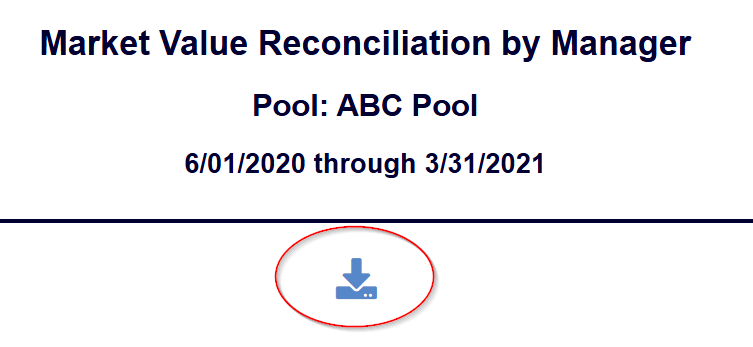
Many reports in Adavico can be easily saved to Excel using the Download button:
Run your report as usual in Adavico.
Once the report is displayed, click the Download button.
The file will automatically download in Excel format (
.xlsx).
⚠️ Note: Some reports may not retain their original formatting (such as bold text or cell colors) in the downloaded file.
To preserve the report’s formatting:
Highlight the report directly from your screen.
Copy it (
Ctrl+Cor right-click → Copy).Paste it into Excel (
Ctrl+Vor right-click → Paste).
This method ensures visual formatting like bold headers, colors, and column widths remain intact.
Was this article helpful?
That’s Great!
Thank you for your feedback
Sorry! We couldn't be helpful
Thank you for your feedback
Feedback sent
We appreciate your effort and will try to fix the article