The Donor Report is made up of five possible sections. The first three sections always display. Sections 4 and 5 can be hidden based on your organization’s preferences.
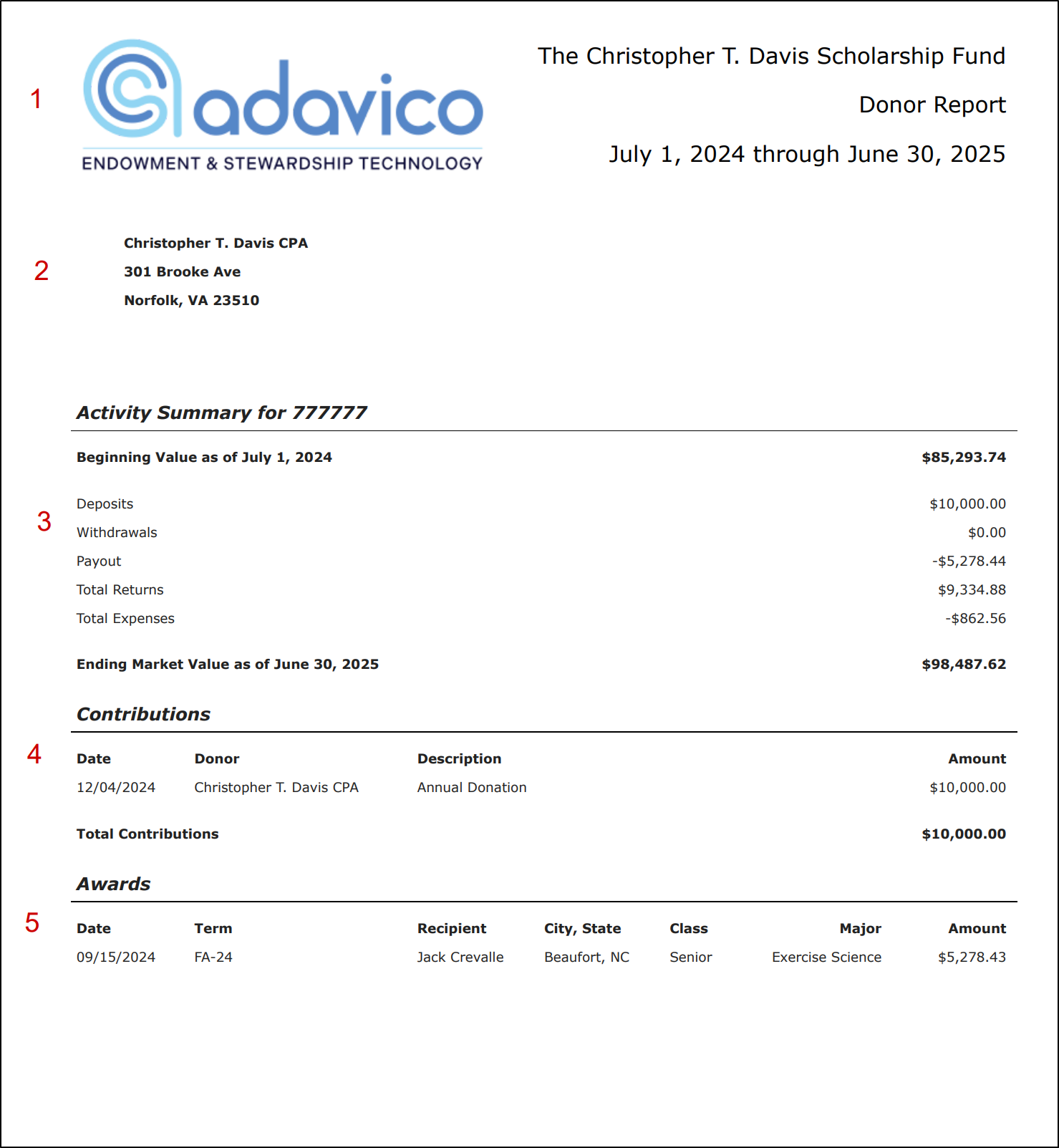
1. Header
The Header section is always displayed at the top of the Donor Report. It provides high-level context for the report and can include your organization’s branding.
What the Header Contains:
Logo or Banner
Fund Name
Report Name (automatically generated based on the report you selected)
Date Range (based on the filters chosen when running the report)
Logo / Banner Options
You can customize the header image under:
Settings → Stewardship Reports → Report Branding
Logo (default):
Appears in the top-left corner of the report (shown in example above).
Image requirements: 125 pixels high; recommended formats are .png or .jpeg.
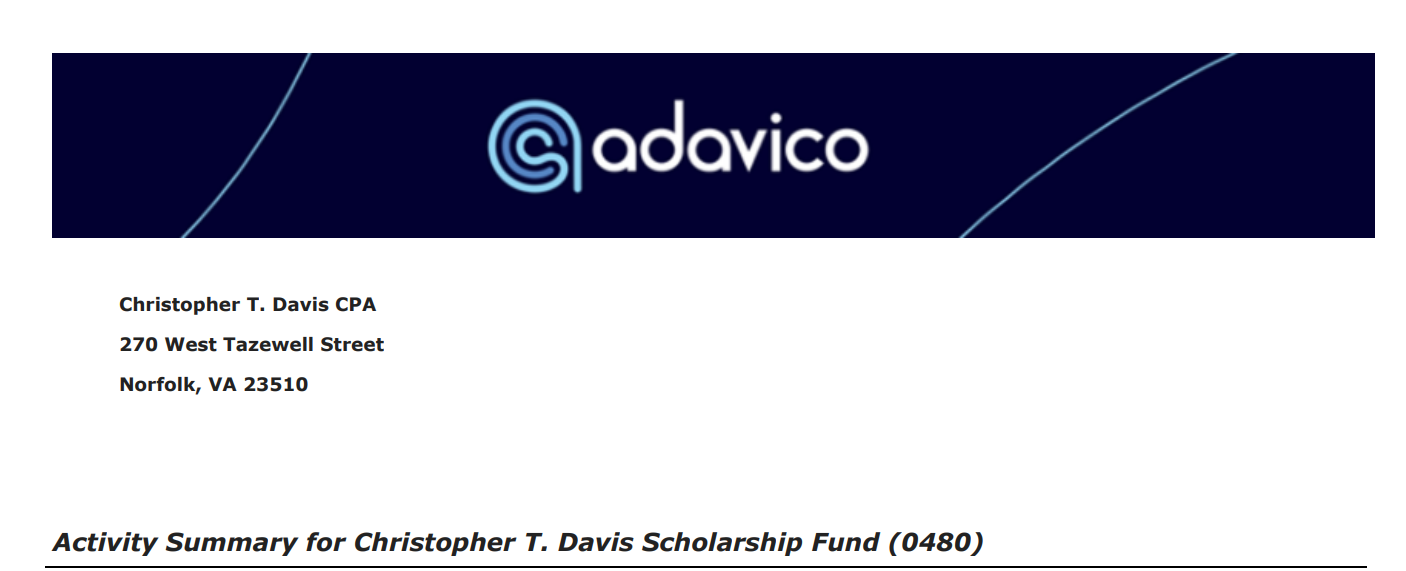
Banner:
Stretches across the full top of the report.
When this option is chosen, the Fund Name and Date Range shift down and display in Section 3 (Activity Summary). Upload the banner and check the box Show Banner for this to be your report header.
Header Color / Header Font Color:
You can apply a branded background color beneath the header image.
Enter a six-digit hexadecimal color value (e.g.,
#003366).⚠️ Note: This value is not error-checked, so ensure the code entered is valid.
You can also apply a font color to align with your branding. This will apply to the header section only.
Note: there is a Font option under report branding that is still in beta testing. This does not apply any font to the report at this time.

Default Branding Settings: 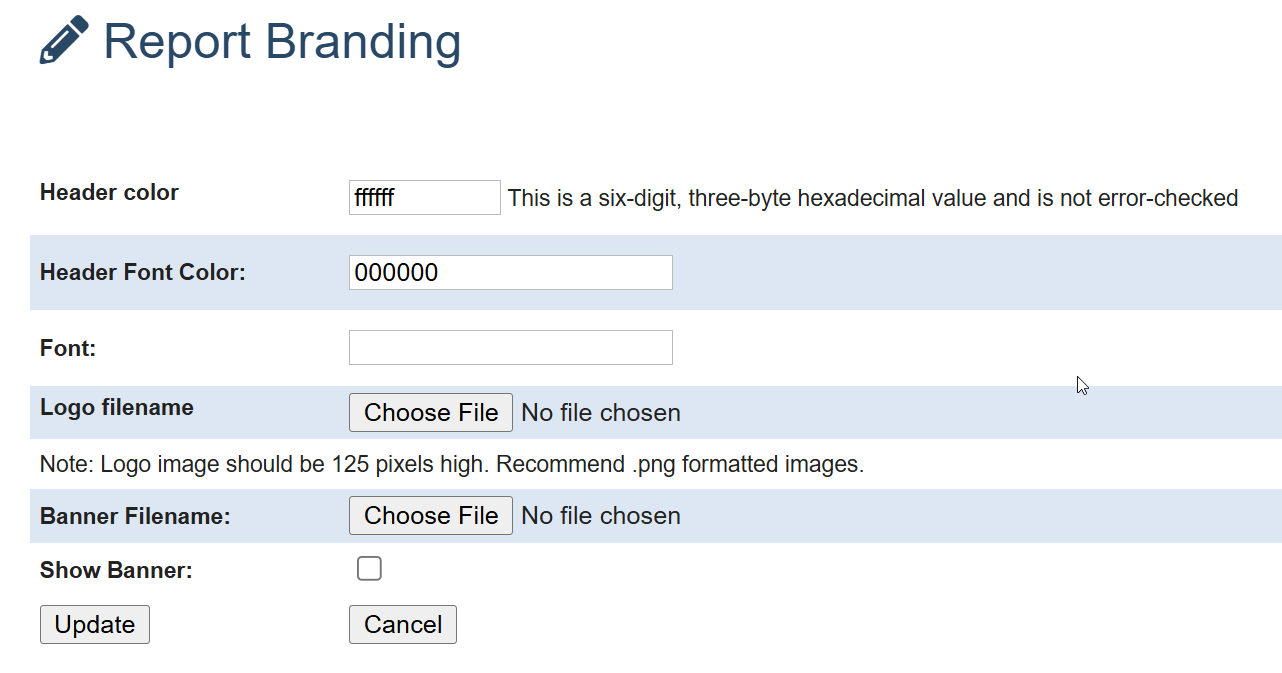
2. Contact
The Contact section displays the donor’s name and address. This section will only appear if:
The contact is set up in Adavico, and
The contact is marked under the fund to receive a donor report.
Setting Up Contacts
Contacts are managed under:
Stewardship & Donor Management → Contacts
From the Contact List view, you can quickly see if a contact is marked to receive a donor report (Yes/No).
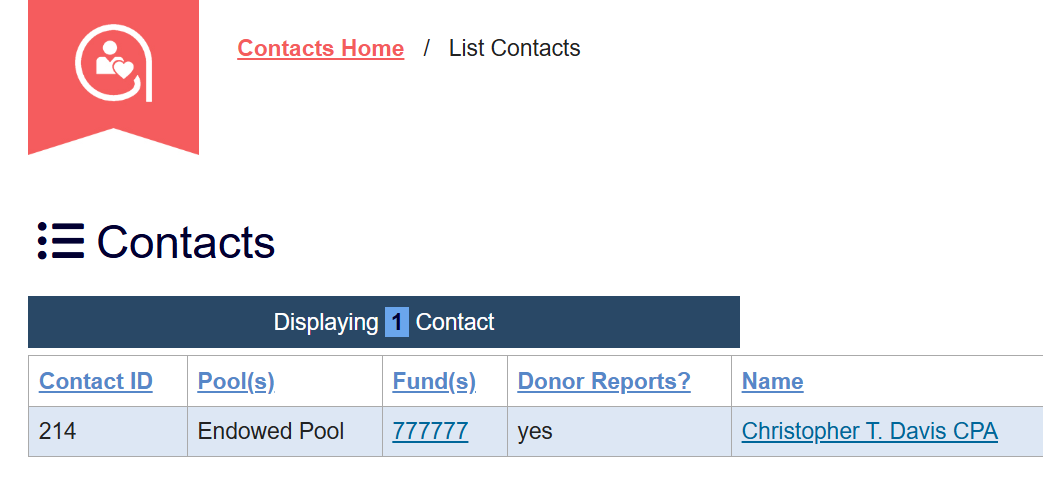
Updating Contact Report Permissions
If a contact is marked No for donor reports but should receive one:
From the Contact List, click on the Fund they should be linked to.
This will take you to the Fund View.
Scroll down to the Contact section.
Select the Edit (pencil) button.
Toggle the Donor Report switch from red (No) to green (Yes).
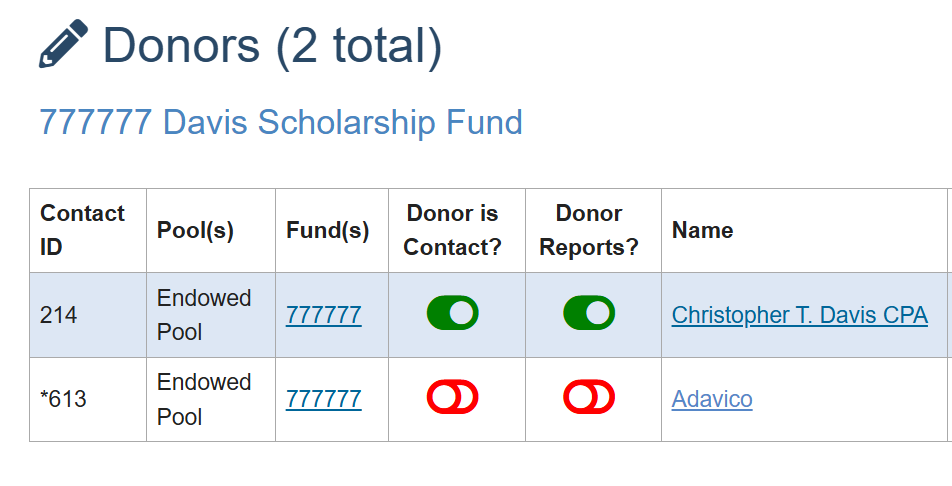
✅ Tip: Always verify that the correct contact is linked to the correct fund before enabling donor reports, to ensure the right individuals receive reporting.
3. Activity Summary
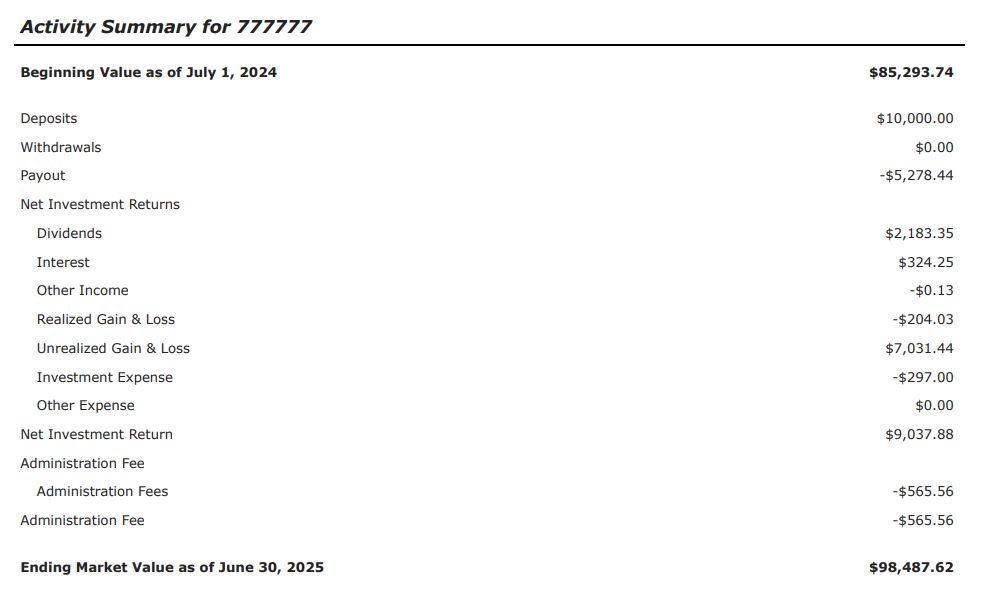
The Activity Summary provides a financial snapshot of the donor’s activity within the selected reporting period. This section can be customized in two ways:
Summary vs. Detail
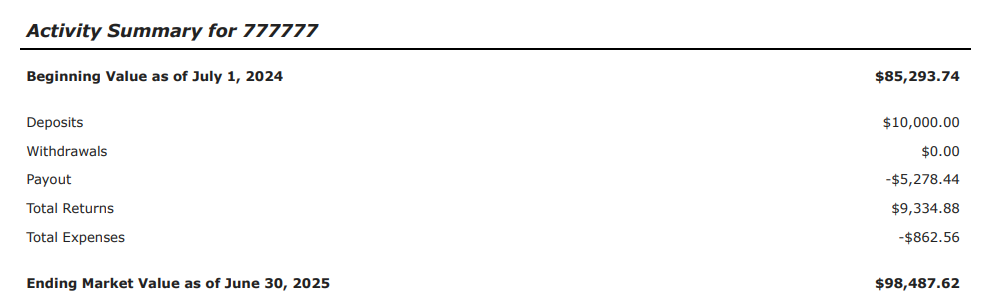
Summary View
All investment earnings are collapsed into a single line.
Best for a high-level overview when detailed breakdowns aren’t needed.
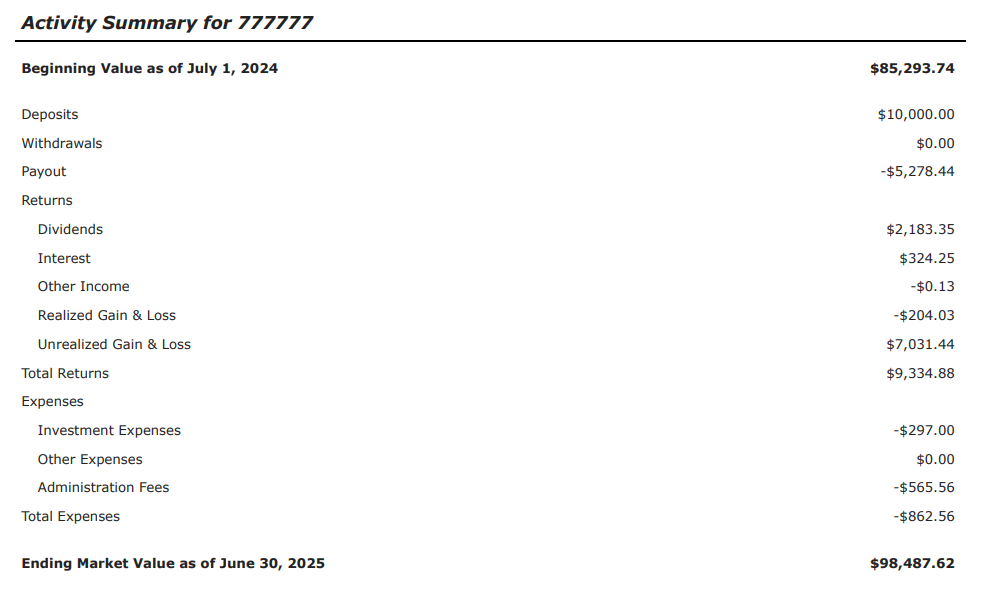
Detail View
Breaks investment activity into individual components, such as:
Dividends
Interest
Realized Gains/Losses
Unrealized Gains/Losses
Total Returns vs. Net Returns
Total Returns
All expenses are grouped together in one line.
Provides a broad picture of net performance.
? Screenshots above for Summary and Detail views are showing Total Returns
Net Returns
Administrative Fees are shown separately from investment expenses.
Gives donors a clearer view of how administrative costs affect the fund
Summary:
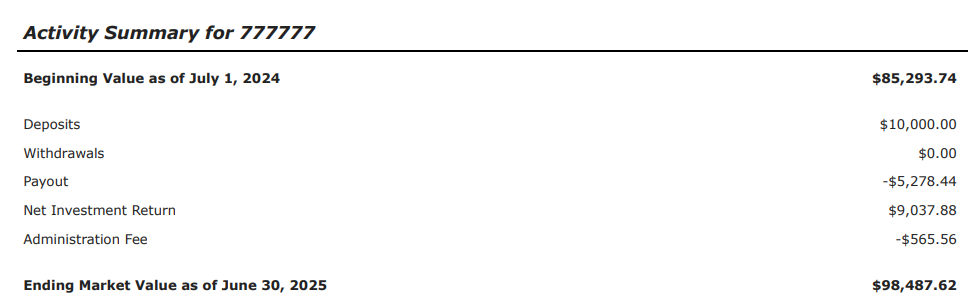
- Detail:
✅ Tip:
Use Summary + Total Returns for a concise, high-level donor view.
Use Detail + Net Returns when transparency into fees and earnings breakdown is important.
4. Contributions (optional)
The Contributions section provides a detailed record of gifts made by the donor during the selected reporting period.
Turning On the Contributions Section
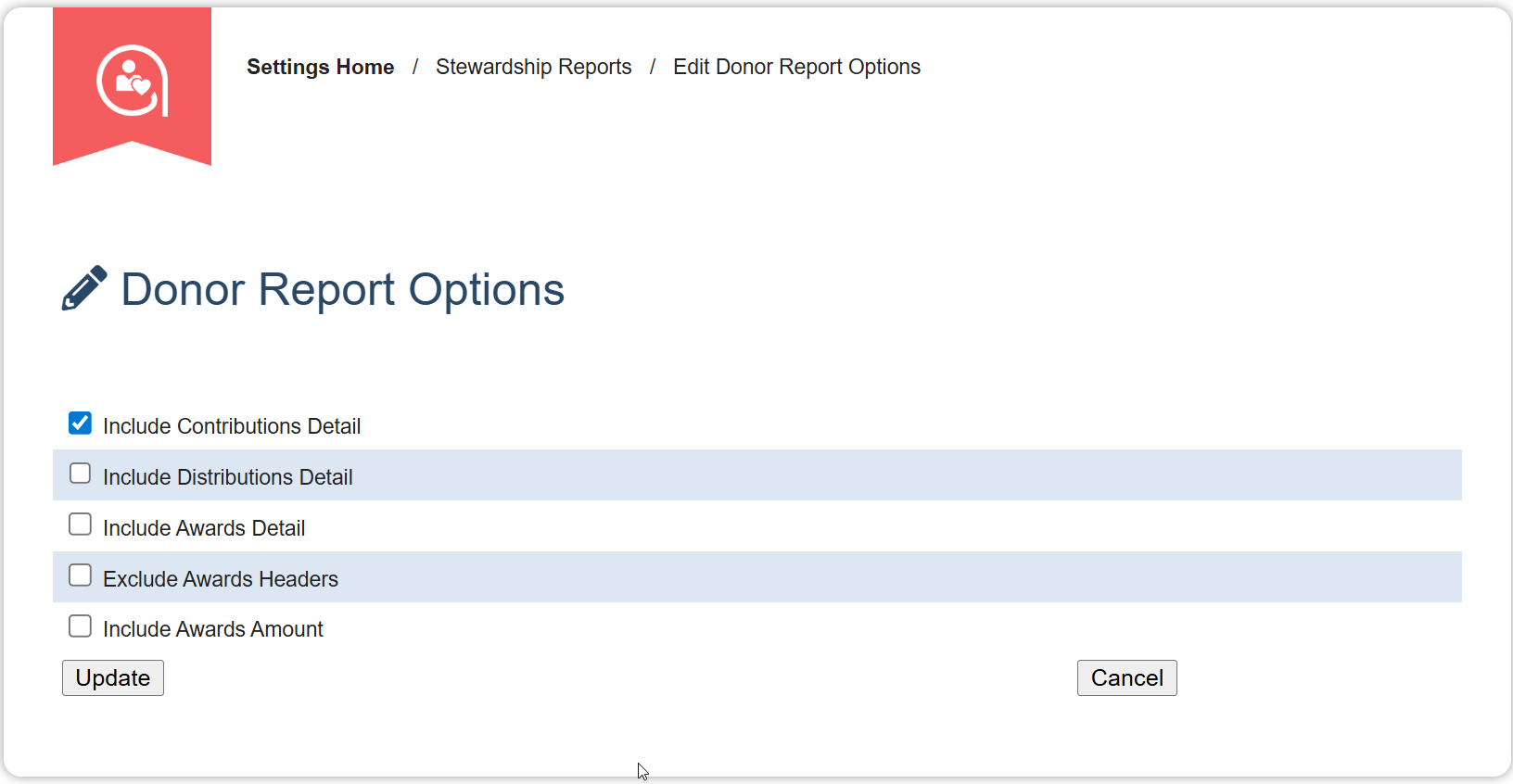
Go to: Settings → Stewardship Reports → Edit Donor Report Options
Enable the Contributions option.
Once enabled, the Contributions section will automatically appear on the donor report.
What the Contributions Section Displays
All contributions given to the selected fund within the selected date range.
Information included:
Gift Date
Donor name
Description (if entered at the time of gift entry)
Gift amount
At this time, the fields in the Contributions section cannot be customized (e.g., you cannot hide the Description field).
✅ Tip: Make sure your internal process requires donor name + description entry at the time of gift entry to ensure accurate and complete reporting.
5. Awards (optional)
The Awards section displays scholarships, grants, or other awards tied to donor's fund. Like the Contributions section, Awards can be turned on or off depending on your organization’s preferences.
Turning On the Awards Section
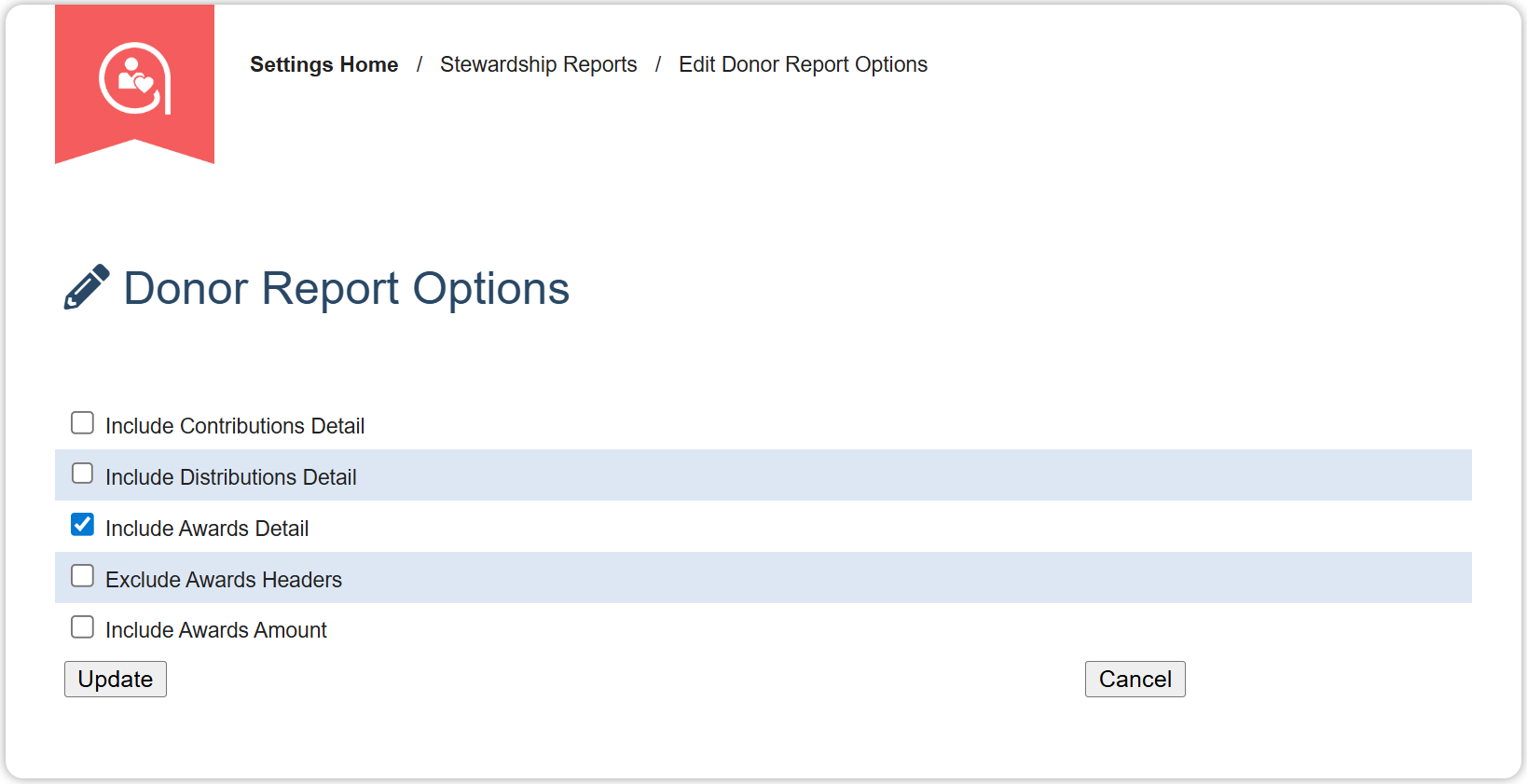
Go to: Settings → Stewardship Reports → Edit Donor Report Options
Select "Include Awards Detail" option.
Display Options
When Awards are enabled, you can control the level of detail shown:
Include Award Amounts
Displays award dollar amounts alongside the award details.
Exclude Award Headers (Summary View)
Shows only a simplified list with:
Date
Recipient
Description

Show Details with Headers (Full View)
Displays award amounts plus additional recipient details, including:
City/State
Class (e.g., Senior)
Major

✅ Tip: Use the Summary View when the focus is on recognizing award recipients. Use the Full View if you want to highlight academic details or provide more transparency to donors.
Was this article helpful?
That’s Great!
Thank you for your feedback
Sorry! We couldn't be helpful
Thank you for your feedback
Feedback sent
We appreciate your effort and will try to fix the article