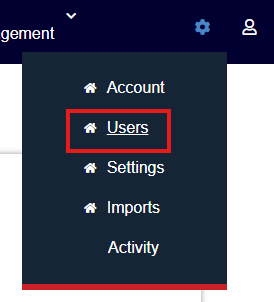
A client's Account Owner can add new users by selecting the Settings icon (gear) and selecting the Users menu item. You can also inactivate and adjust user's settings from this menu as well.
Start by clicking the great icon in the upper right corner, then choose Users.
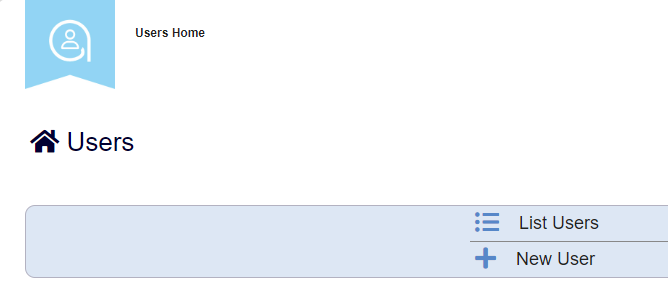
To view current users and access levels, select List Users.
To add a new user, select New User.
These are the user level fields, asterisks (*) denotes required field.
Note: Office, this field is for you to denote which department your user works in. It doesn’t impact access levels in Adavico.
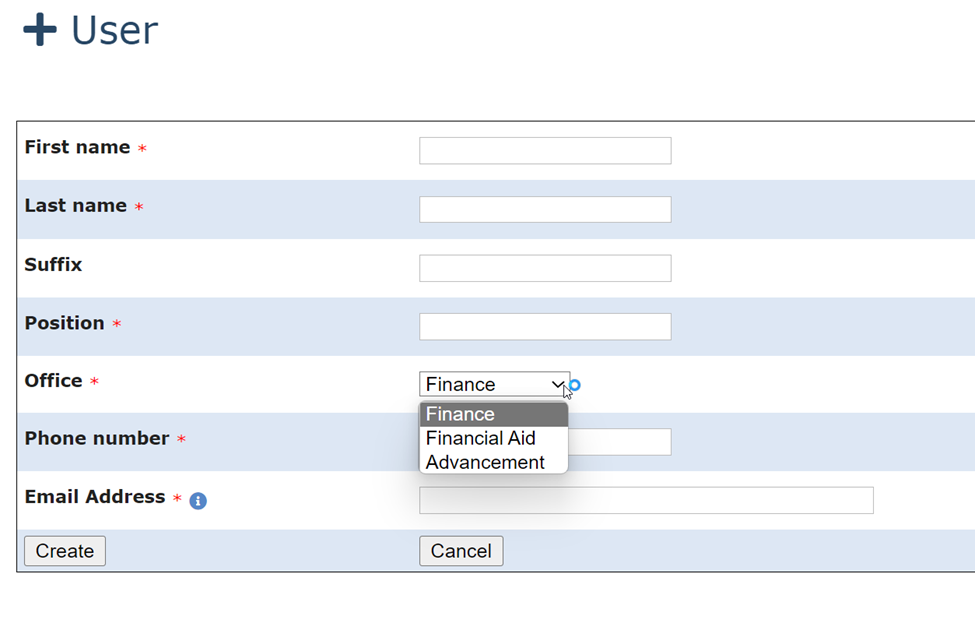
Once the required fields are populated, click the Create button, which will bring you back to the User List. There are required edits that must be done now to allow access.
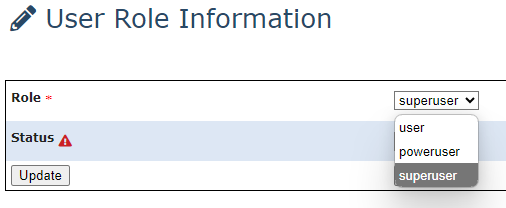
From the User List, select the newly created user’s name. At the User View, scroll to Role and select the Edit button.

Choose the appropriate access and select Update.
- User – read-only access to view screens and generate reports; this access also has the ability to upload documents
- PowerUser – can do the above plus:
- import, edit, or remove transactions and other data elements prior to posting (gifts, distributions, awards, spending payout, admin fees, pledge receivables)
- create new funds and edit most fund view items
- enter reconciliations, but not post
- calculate, but not post unitization/valuations
- create contacts, notes, and upload documents
- SuperUser – can perform all actions above and the ability to post transactions (gifts, distributions, awards, spending payout, admin fees, pledge receivables)
- Account Owner – one per client (must be a SuperUser), can perform all actions including manage user access
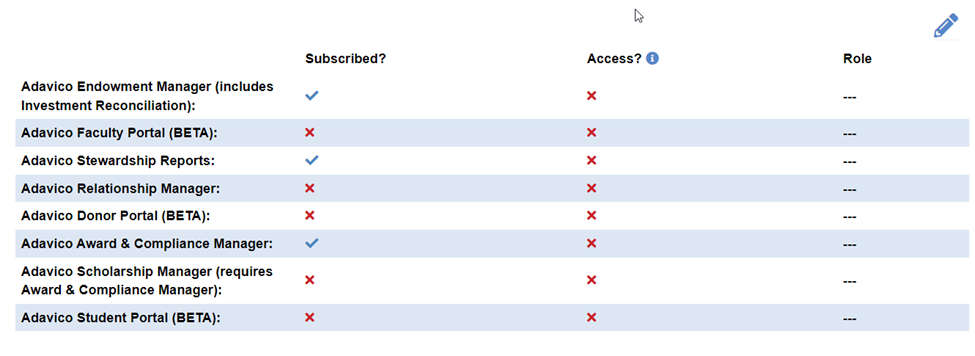
Select the user again and scroll to Subscription Access and Role. "Subscribed?" shows you which modules the client has purchased from Adavico.
Select the Edit button and choose which access the user should have access to for each module and select Update.
For the last step, select the user again and scroll down to Departmental Access. Select the Edit button and check the boxes as appropriate for departments this user can view. If they can have access to all departments, you must check all boxes. If there are no departments listed, select the “Undefined” option and click Update.
New Users Only:
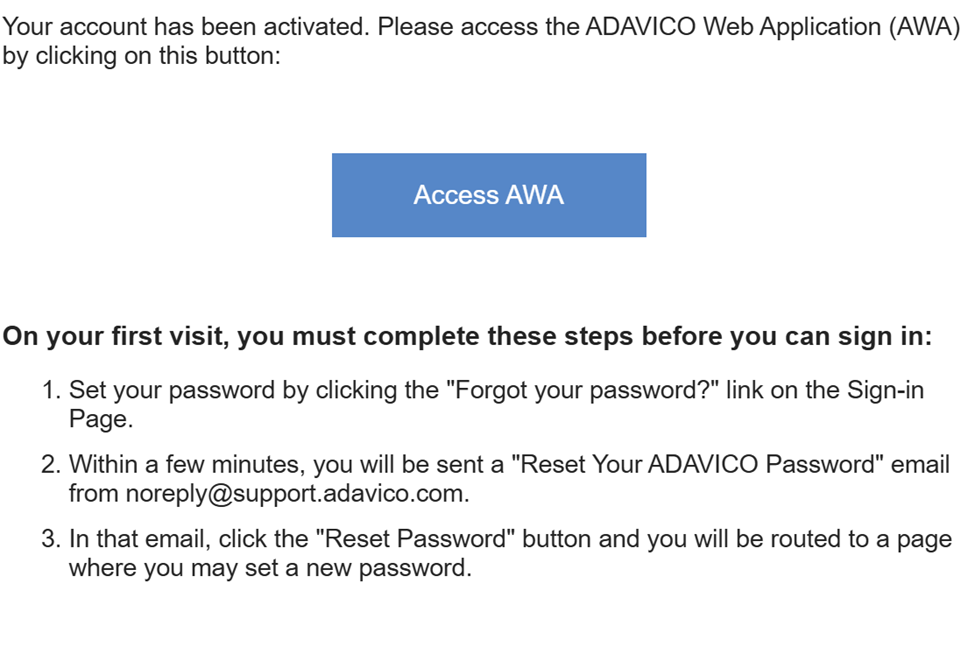
The new user will receive an email that their account has been activated. The email, as shown below, will walk the new user through the steps to finish setting up their access.
Was this article helpful?
That’s Great!
Thank you for your feedback
Sorry! We couldn't be helpful
Thank you for your feedback
Feedback sent
We appreciate your effort and will try to fix the article